
How to Assign and Unassign a Device to an Animal
Steps to follow to associate a device with an animal
In the app, you can associate a device with an animal both during initial registration and for existing animals. Here's a step-by-step explanation of both options:
From the device list
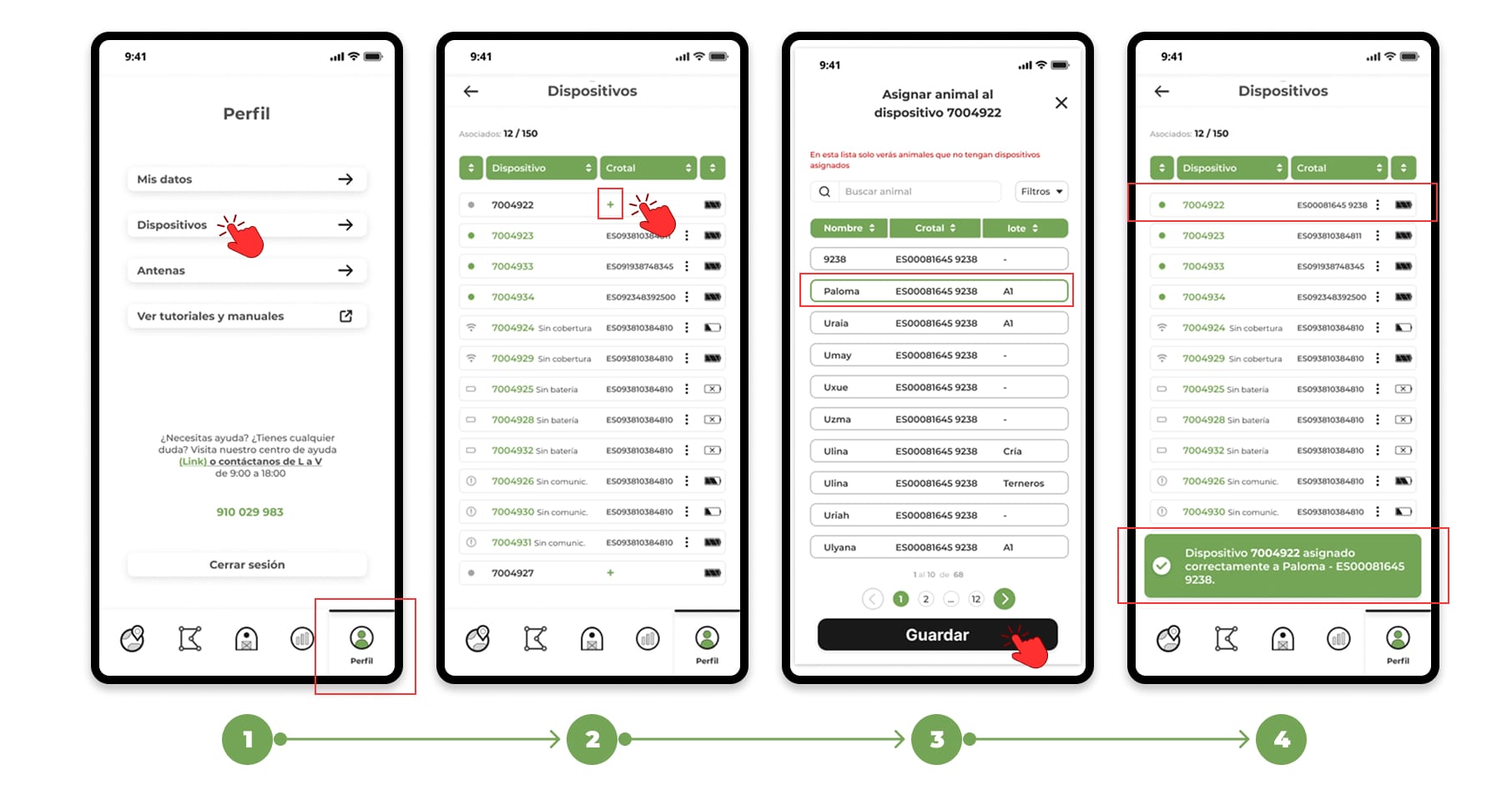
Assign a device:
- Go to the app's profile menu , where the full list of devices is displayed.
- Unassigned devices display a button with the "+" icon in the ear tag column. By pressing this button.
- A list will open with all registered animals that do not have an assigned device.
- Select the animal you want to associate and tap Save.
- The device will be assigned to the selected animal.
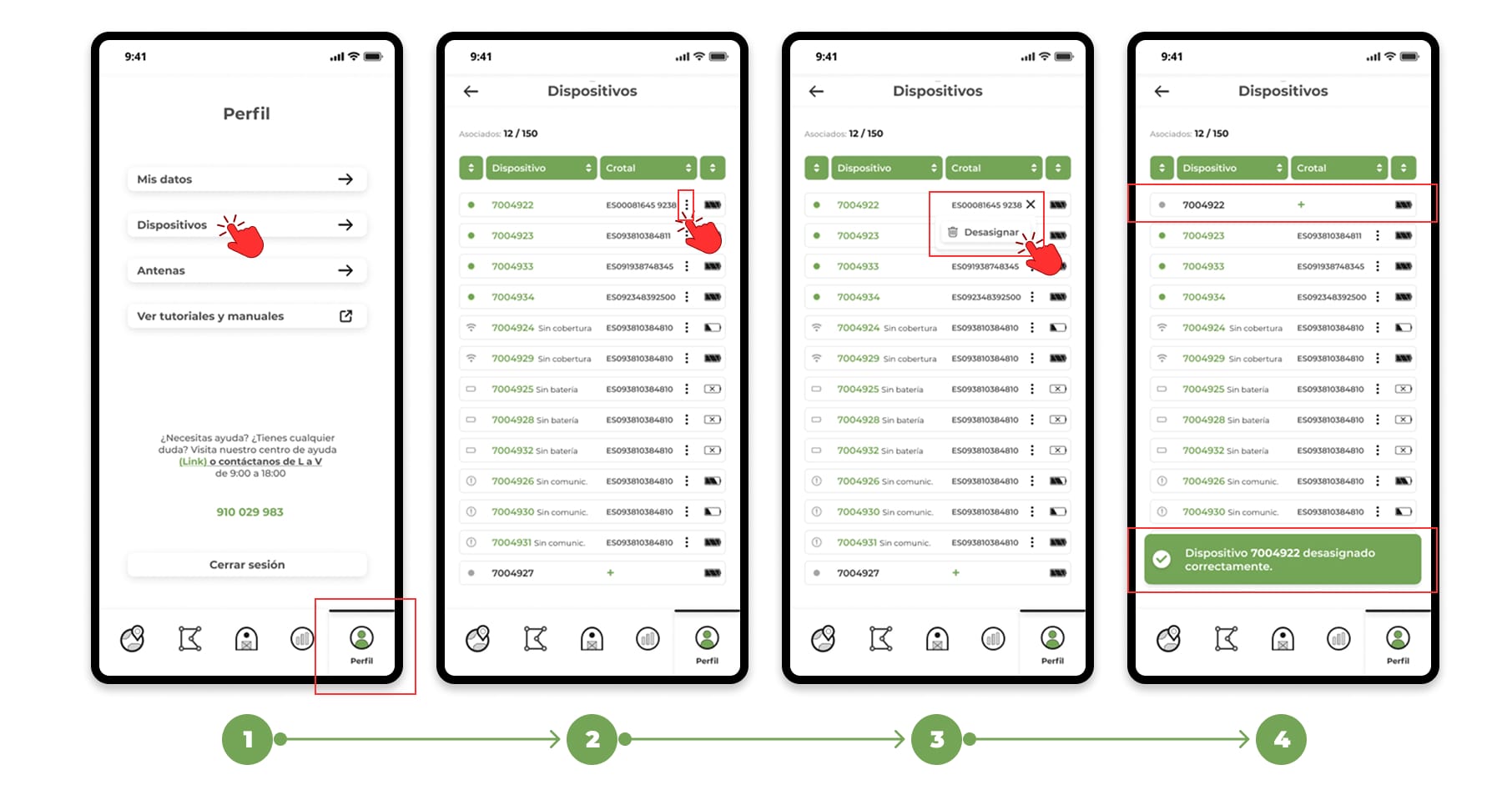
Unassign a device:
- In the list of devices, find the one you want to unassign.
- Press the three-dot button next to the animal's ear tag.
- Select the Unassign option.
- The device will be deassigned from the animal instantly.
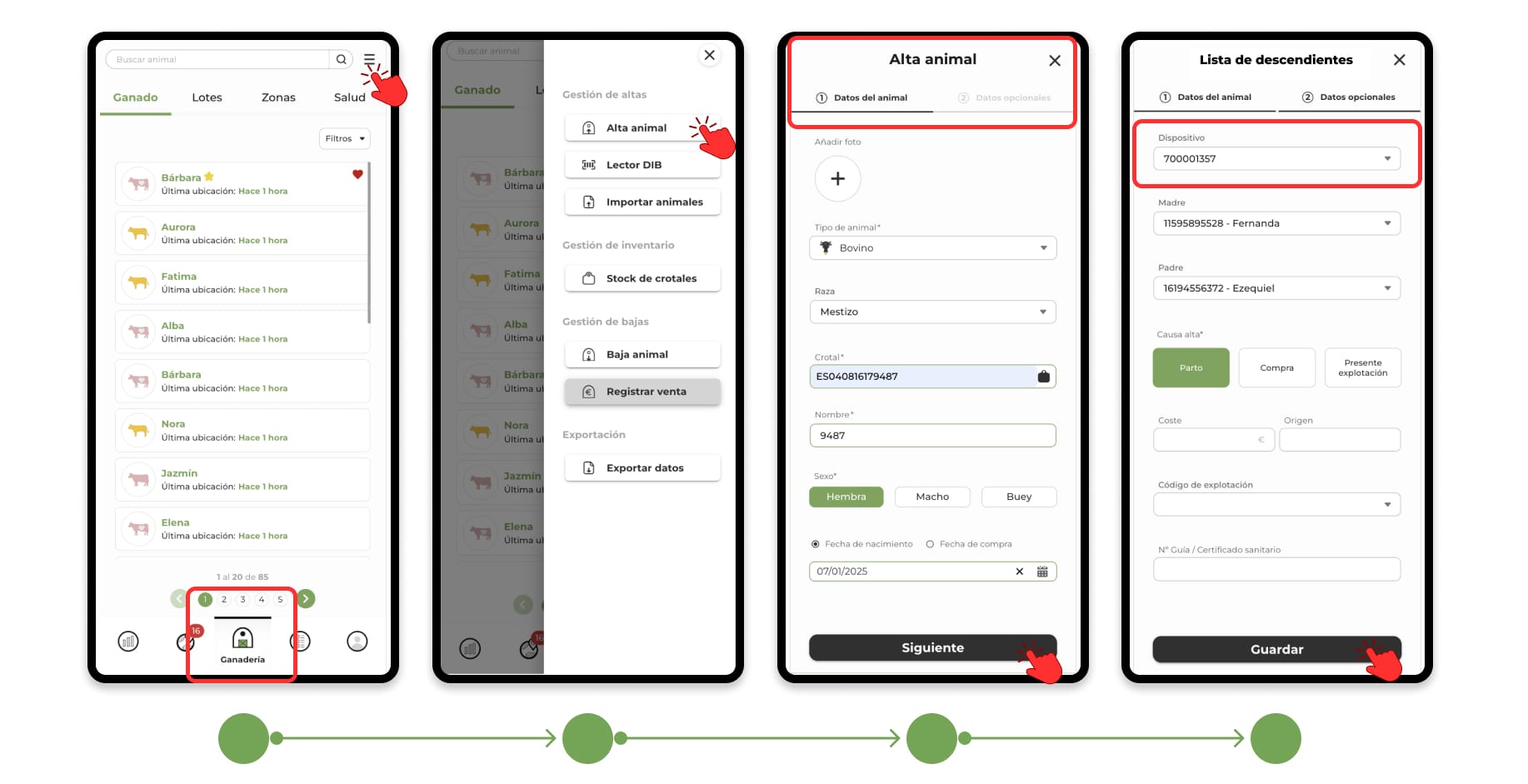
Assign a device during the discharge of an animal
- When you are registering an animal, during the second step of the form, you will find the "Device" section.
- Click on this section to open a drop-down with the list of devices available in your farm. Select the device you want to associate with the animal.
- Continue filling in the rest of the details of the registration form and press "Save" to complete the process.
You can also unassign it from the animal's file, by clicking on "edit file".