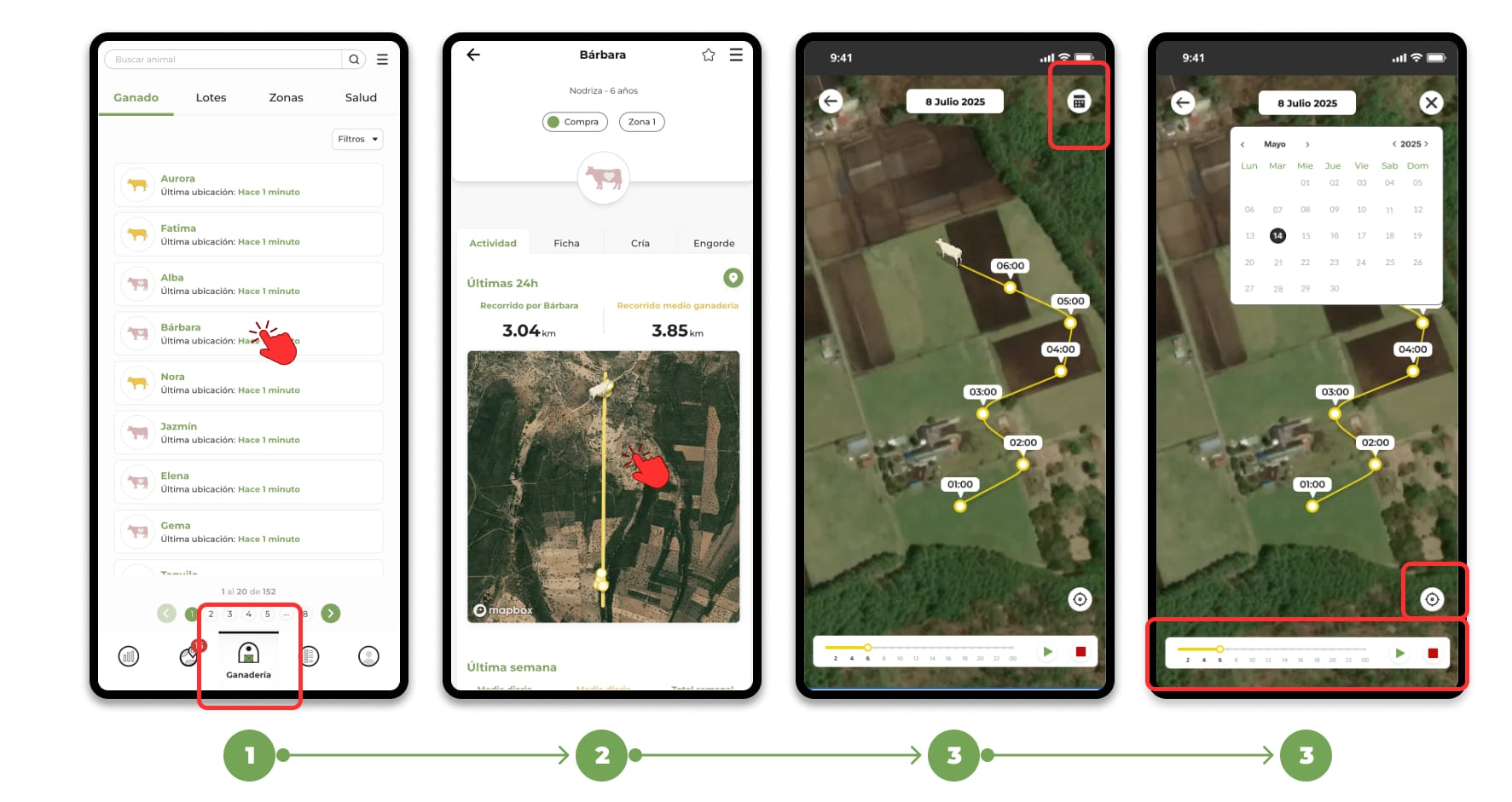
How to see the animal's route
Steps to follow to see the route that an animal has taken on the map.
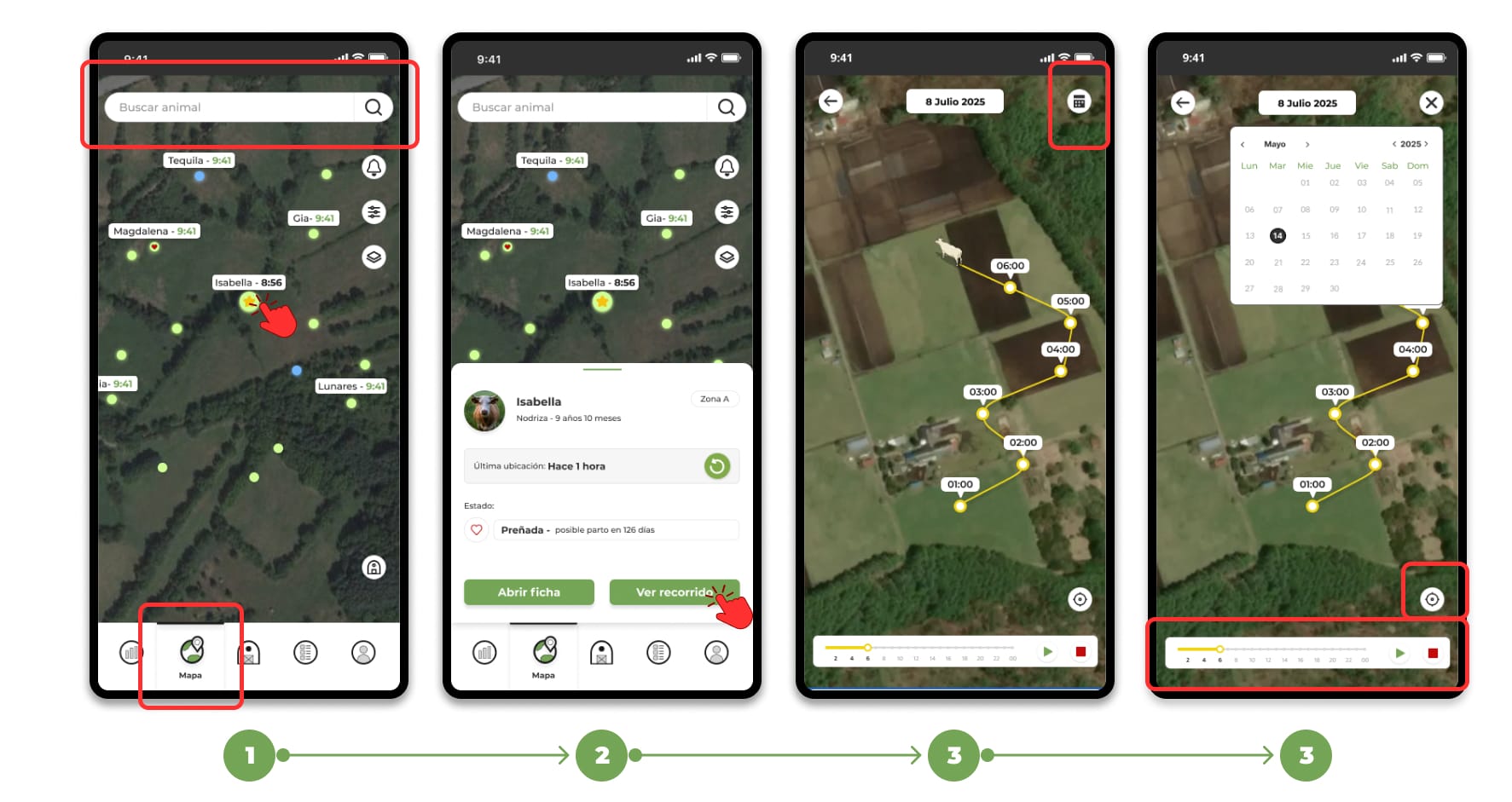
The application allows you to see the route of an animal in two ways: directly from the map or from the animal's file.
Directly from the map
- Open the Map section and select the animal.
- The animal's file will open on the map; click on the "View route" button.
- In the tour viewer you will find:
- Calendar icon: choose the date you want to check (by default the current day is selected).
- Controls (bottom bar):
- 🟥 Red square: End the animation and place the viewer at the end point of the course.
- ▶️ Green Triangle: Resume the animation from wherever it is.
- ⏸️ Two lines (pause): Pauses the animation.
- Yellow bar: Allows you to manually move forward/backward along the route timeline.
- ⊙ Circle with dot — Center/unleashes the display of your position (useful if you want to compare your location with the animal's).
From the animal file
- Go to Livestock → select the animal in question.
- Inside your file, click on the map.