
How to create batches of animals and what functionalities it has
Guide to creating a new fattening lot
Bundles allow you to group animals together for faster and easier management.
Also, if the lot includes animals with GPS devices, the app uses the position of most animals to automatically assign them to the grazing area. [(How the perimeter and zones work)]
👉 That's why it's important to keep animals from the same batch together.
How to Create an Animal Bundle
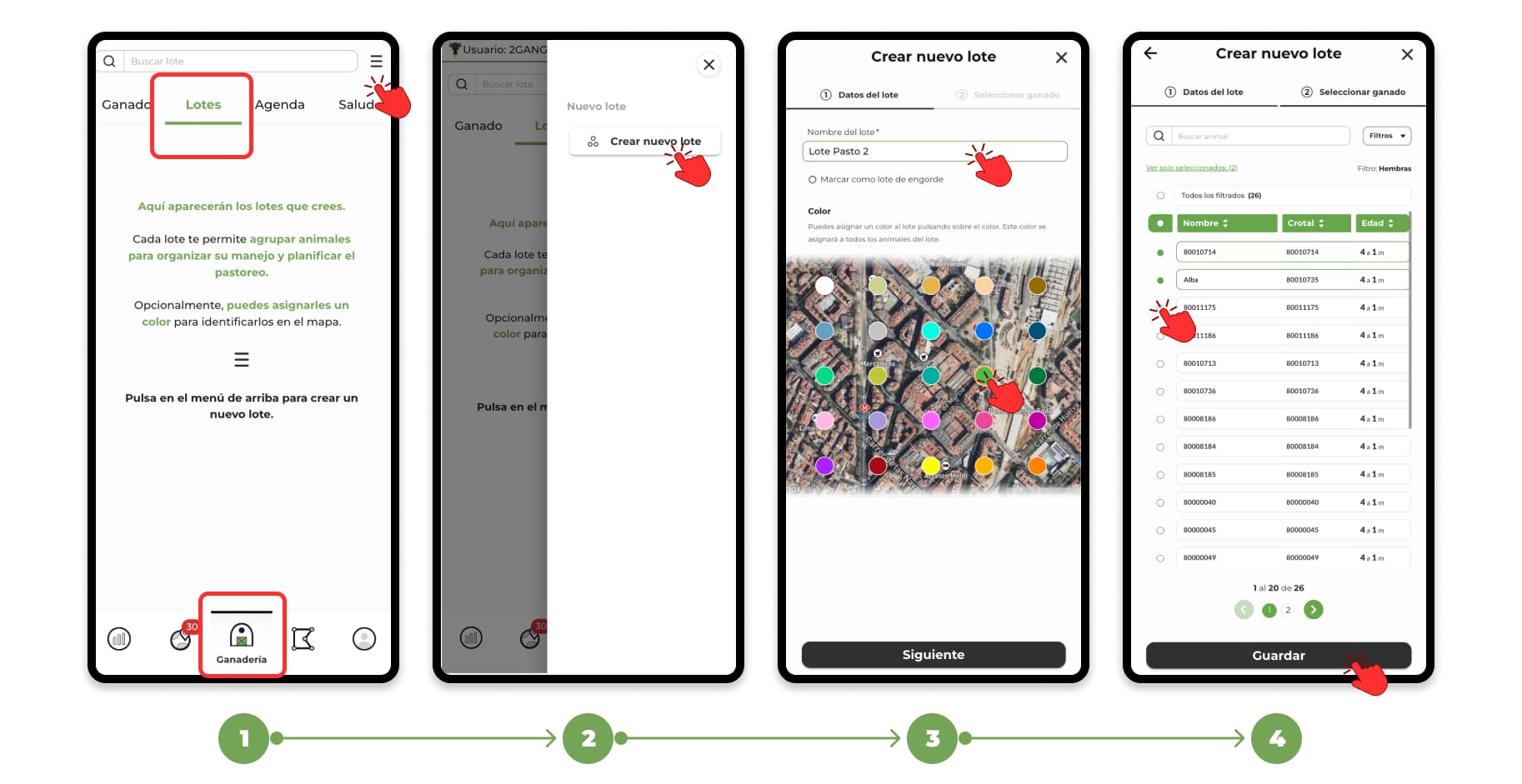
1. Go to the Livestock section and select Lots.
2. Then, tap on the menu located in the top right corner and choose the "Create new batch" option .
A form divided into two steps will open.
3. Batch Configuration:
- Lot name (required).
- Mark as a fattening lot (optional).
- It allows easy identification of the group in fattening and weighing statistics.
- Lot color (optional).
- The animals in the batch will be shown with that color on the map, making them easier to identify.
Tap Next to continue.
4: Select the animals
Select the animals that will be part of the batch. To make this easier, you can:
- Use filters to filter the list of animals according to your needs
- Use the search engine to find specific animals manually.
Click Save and the batch is created.
💻 Select Animals Using a CSV File
(desktop only)
If you already have an animal list ready, you can import it.
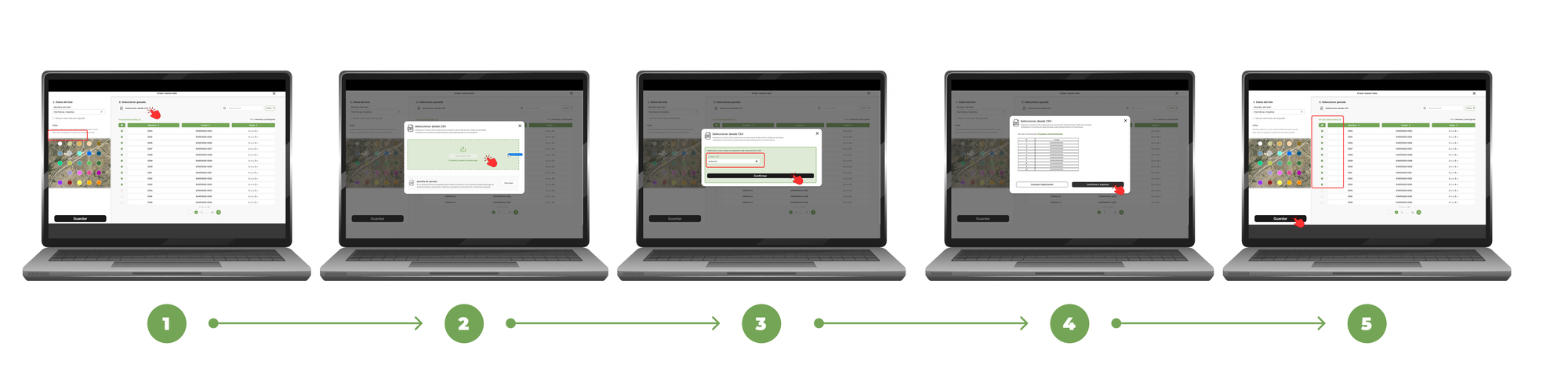
- After opening the "Create New Batch" form on a computer, click "Select from CSV".
- Drag or import the CSV file with the list of animals.
- Indicates which column in the file corresponds to the animal's identifier.
- Confirm the import.
- The animals included in the file will be automatically selected in the form.
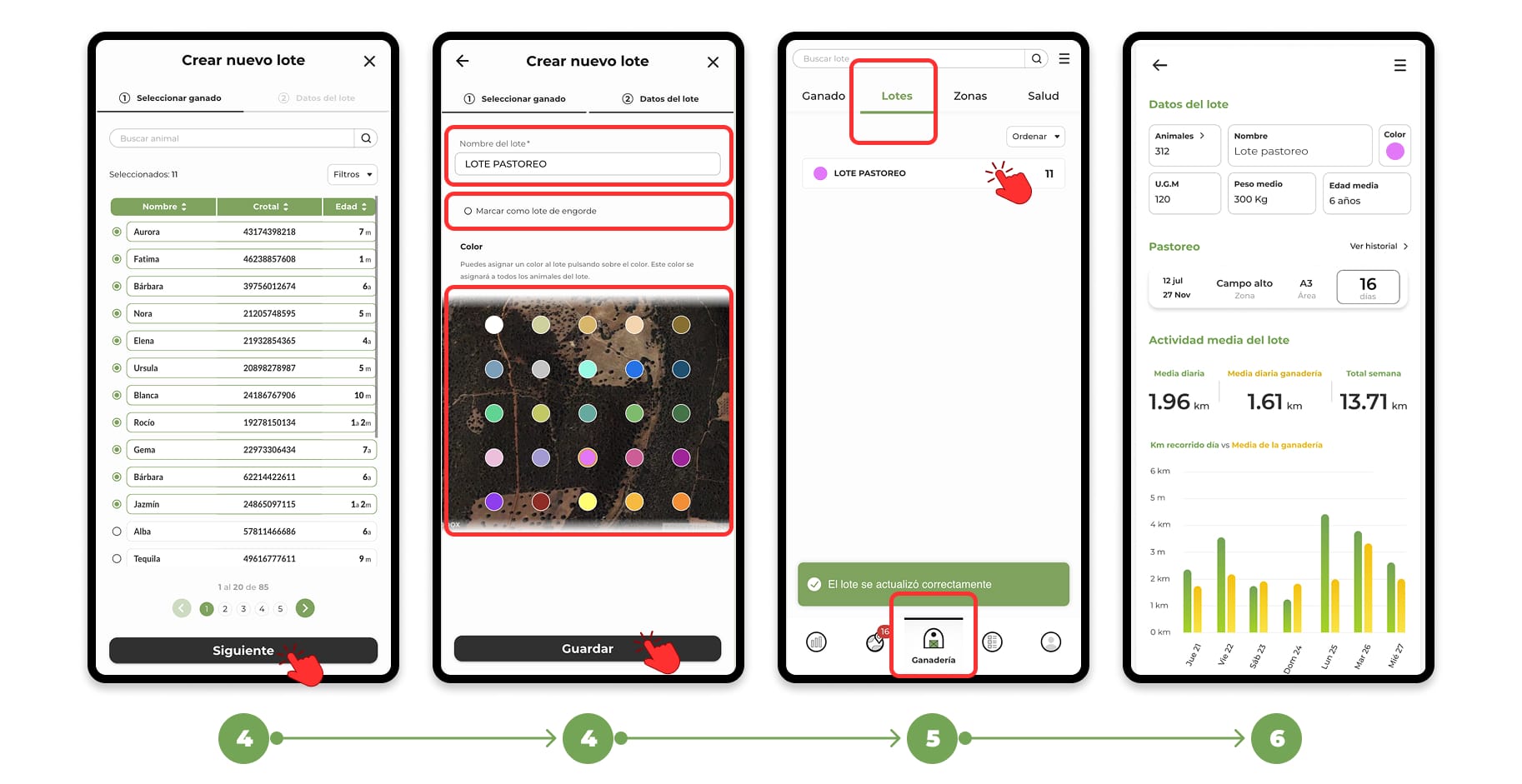
5. Each batch has its own token, including:
- Batch data: includes the total number of animals (click to see the full list).
- Movement history: Shows the current status and route between zones. For more details, tap View history.
- Average activity of the flock: comparative data of the last week with respect to the rest of the livestock.
Benefits of Using Lots:
- Faster management and visualization
- Batch filter on forms, animal list, and map.
- Locate animals without having to search for them one by one.
- Automatic zone assignment
- Animals with a GPS device are automatically assigned to a grazing area.
- If they are part of a batch, the allocation will be made based on the entire batch, reducing errors.
- Includes animals without a device
- If a batch combines animals with and without a device, those without a device will be automatically assigned to the same zone.
- Lots that do not have any animals with an assigned device can be manually assigned to zones. [(How to assign or move animals/lots without a device assigned to zones)]
- Better identification on the map
- Each batch may have a different color.
- You will be able to visualize on the map:
- The position of batches with devices.
- The position of batches without devices (manually assigned to a zone).
- You can also check the route of the lot in different periods to know which areas it has grazed on.